


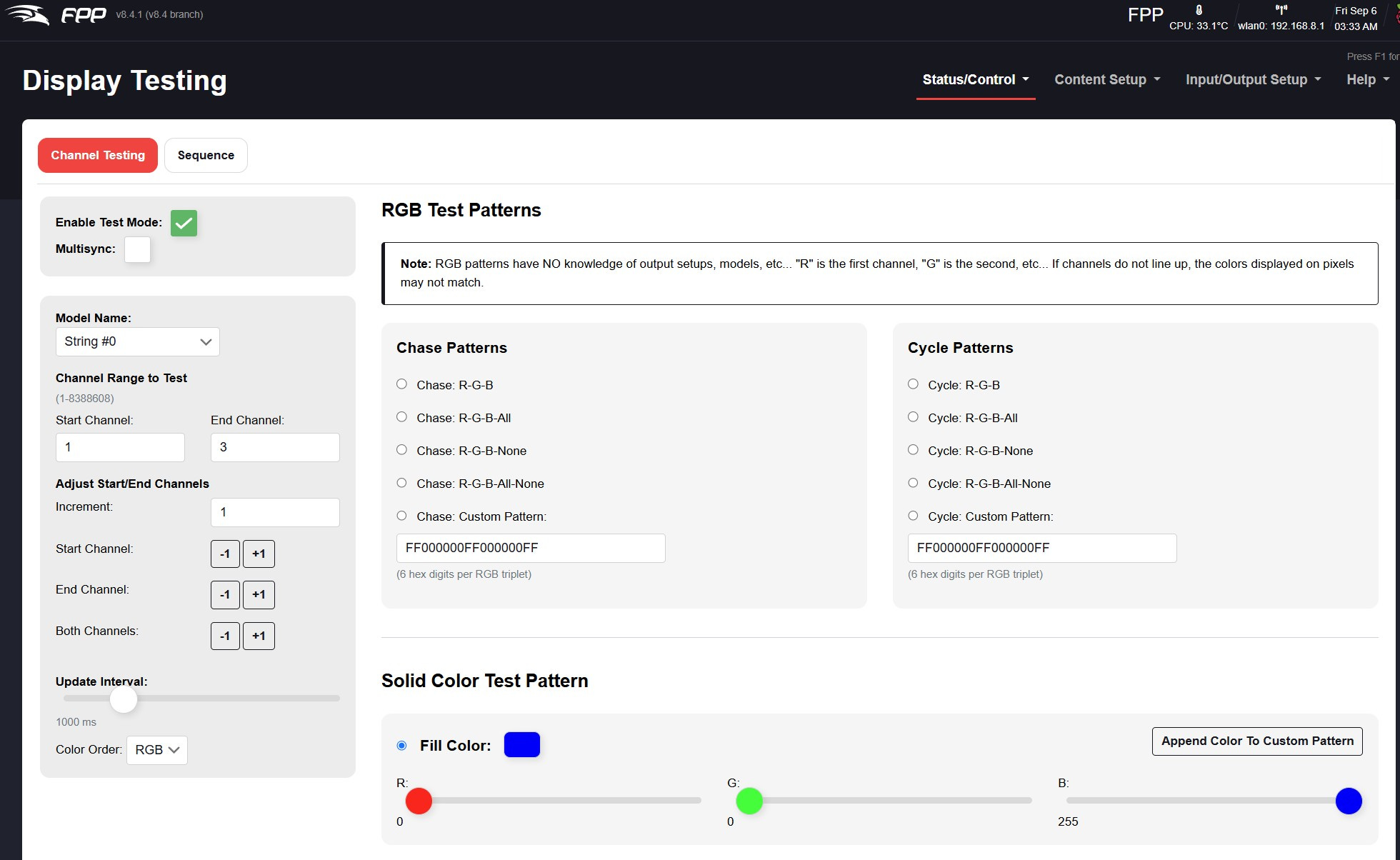
During my initial testing, I started seeing random lights playing. So the first thing I did was isolate one LED in the Falcon Player and set it to blue. I got random flicker as seen in the video above.
I set individual LEDs using the Display Testing screen in Falcon Player. In the video above, i was on LED 3. If you set Increment to +3 and click on Both Channels +3, it will increment one LED at a time. Each LED would light up blue but then there would be random flicker, all over.
Next, I looked on the Internet and found some suggestions.
A voltage regulator mismatch on the GPIO pin, particularly when dealing with WS2812 LEDs or other external components, can cause a range of issues due to incorrect logic level signaling. Here are the common symptoms:
1. Unstable LED Behavior
LEDs flicker randomly or inconsistently.
Unexpected colors or brightness changes.
Some LEDs light up when they shouldn’t.
LEDs may not respond at all.
2. No Signal or Intermittent Control
The data signal may not be recognized if the Raspberry Pi is outputting 3.3V logic, but the WS2812 LEDs expect 5V logic.
The LEDs may work partially or only some of the time.
Certain pixels in the strip may fail to update while others work fine.
3. Random LED Activation
Some pixels light up even when no signal is being sent.
Every few seconds, random pixels may flash unexpectedly (caused by weak signal integrity and noise interference).
4. Overheating Components
If an incorrect voltage regulator is used, it might overheat.
The Raspberry Pi or the voltage regulator might shut down due to thermal overload.
5. Raspberry Pi Instability
If the GPIO pin is overloaded due to a direct connection to high-current LEDs, the Pi may restart, freeze, or behave erratically.
If the Pi is underpowered due to an improper regulator, the system might crash or throttle performance.
How to Fix It
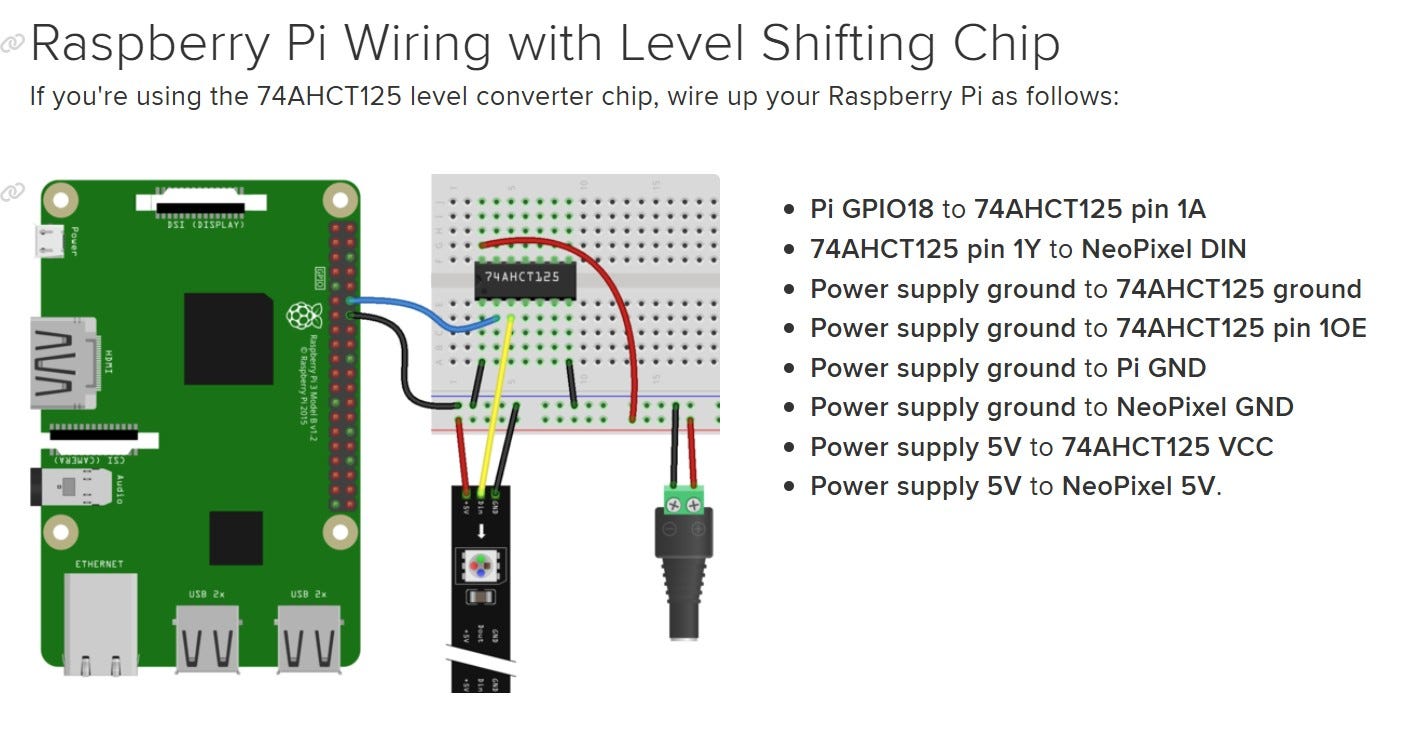
Use a Logic Level Shifter: A 74HCT125 or 74HCT245 chip will properly shift 3.3V signals from the Raspberry Pi to 5V for the WS2812.
Use a Proper 5V Regulator: If powering the LEDs from a regulator, ensure it can handle the current draw (e.g., a 5V, 10A power supply for large LED setups).
Check GPIO Pin Current Limit: The Raspberry Pi GPIO pins should not directly drive the LED strip. Use a transistor, MOSFET, or buffer circuit.
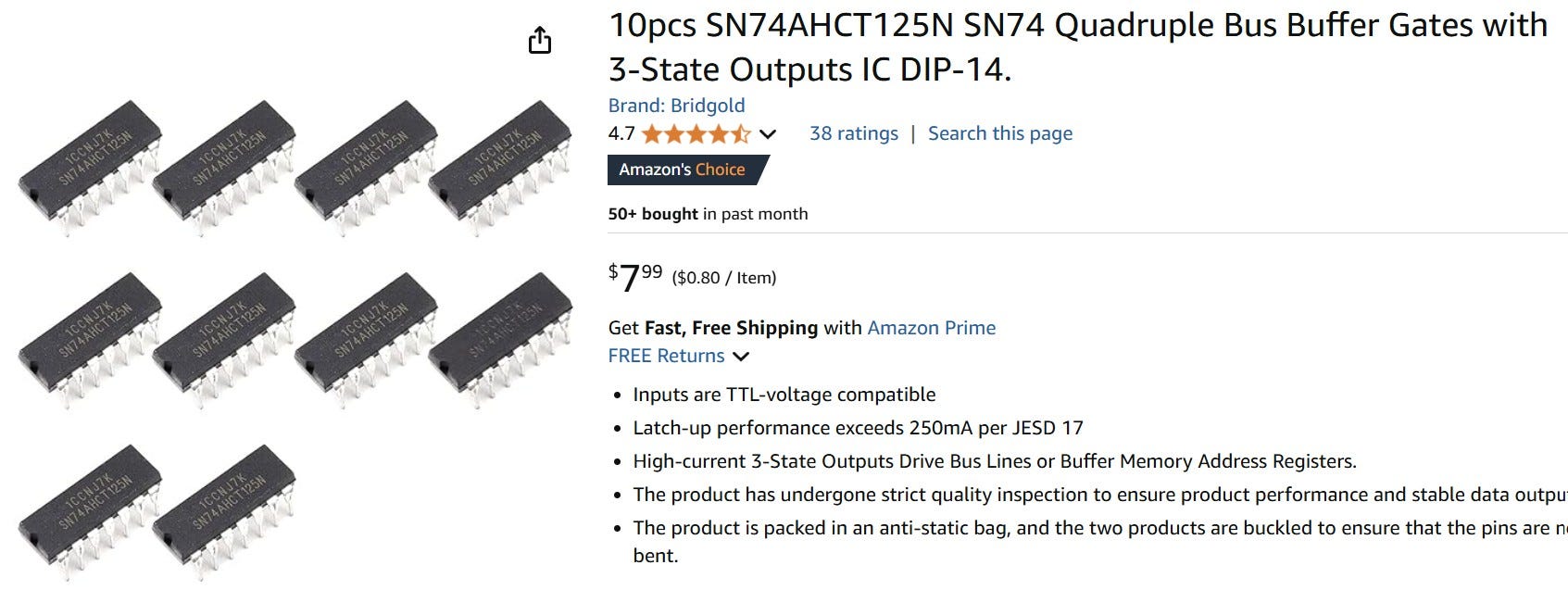
I bought some on Amazon (TI version of the chip).
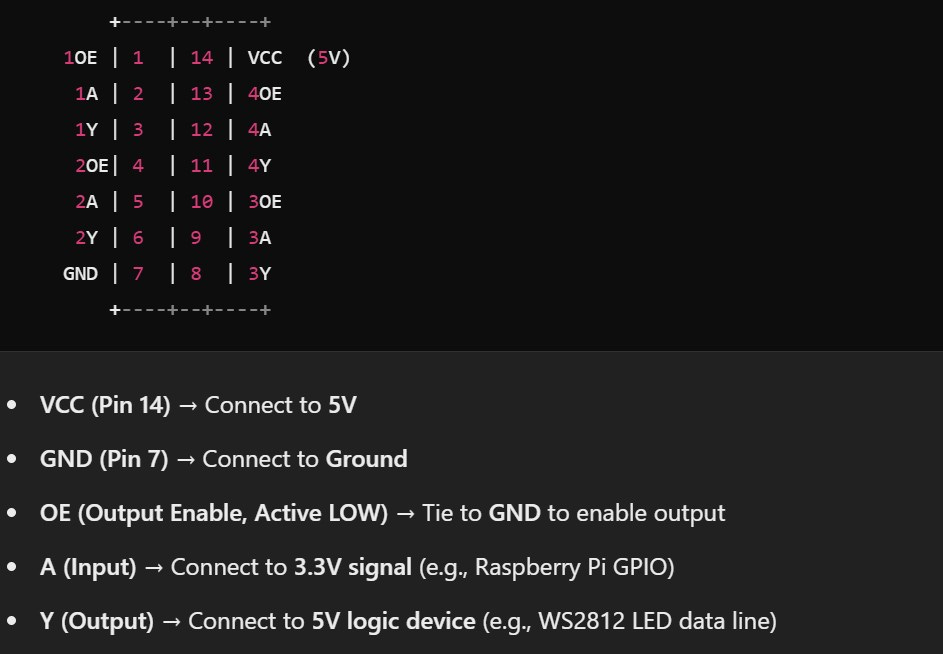
And wired it up.
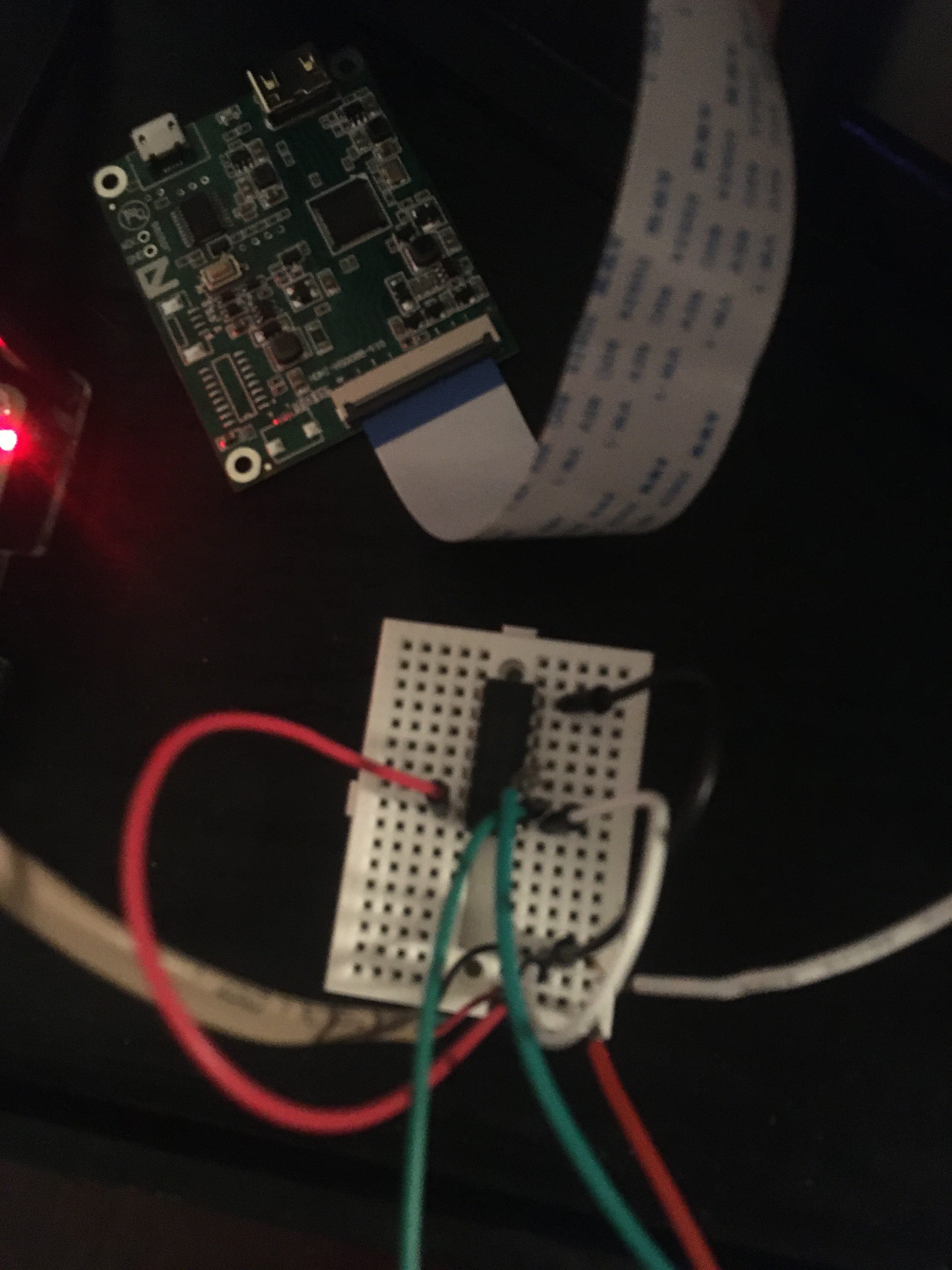
Add 330 ohm .25Watt resistor on data line going out, still no worky.
Maybe it’s the ground?!
I ran across a video by Core-Electronics that showed me the proper way to wire up the LEDs with a separate power supply.
That Fixed it!
To test, I created the Test Sequence below.
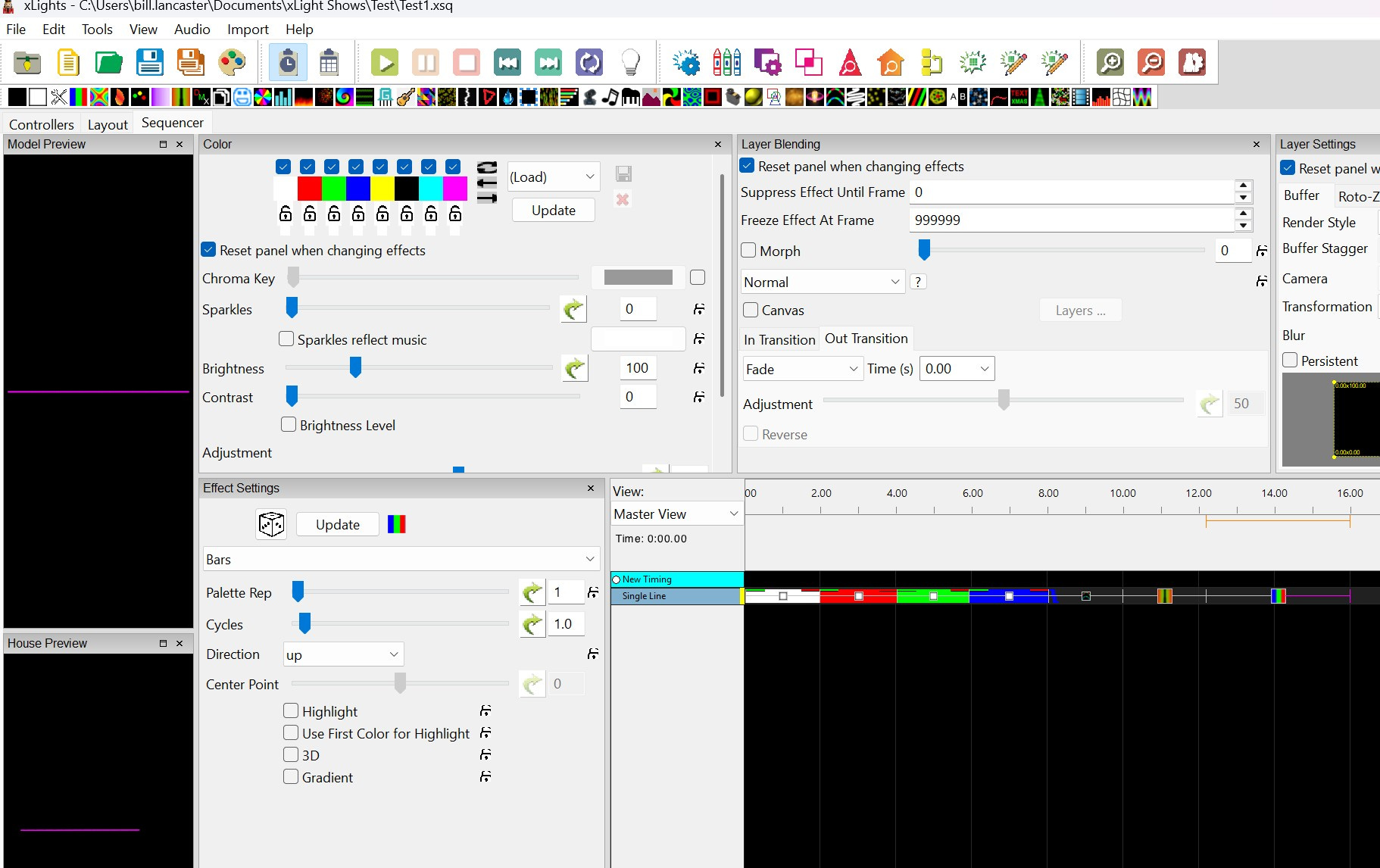
The flicker is gone! I didn’t start recording until Red, and I noticed RGB is RBG, minor details.